



Manage data in the Stations table
The Stations table in Quantev is the primary source of details about your charging stations.
Adding and Removing Columns
Section titled “Adding and Removing Columns”There are many more data fields available to display in the table than are shown by default.
To add or remove columns from the table, click the “gear” icon at the upper right of the table. Note this icon is not shown unless you are hovering over the table:

This opens the Column selection tool:
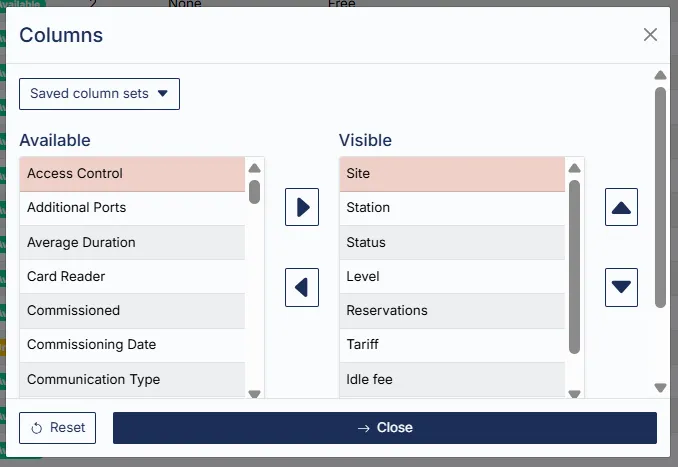
Use the arrows in the middle to move fields that you wish to display into the right-hand “Visible” column, and fields that you wish to hide into the “Available” column.
Use the up and down arrows located at the right to reorder the visible columns. Fields are shown in order in the table from first to last as set in this list.
Saving Column Sets
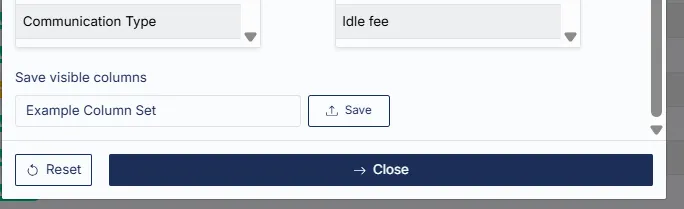
Section titled “Saving Column Sets”You can save the currently selected fields as a “Column Set”, which lets you quickly re-apply those fields in the future.
To save a column set, add a name at the bottom of the column selection window and press Save:
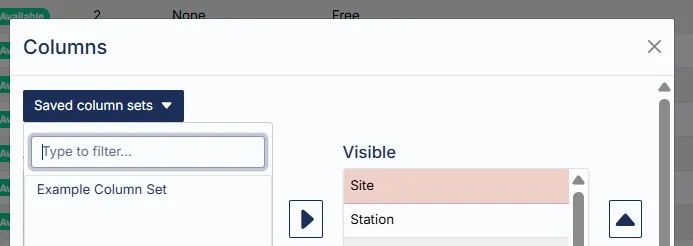
These fields can be easily re-applied in the future using the Saved Column Sets dropdown:
Field Reference
Section titled “Field Reference”| Field Name | Definition |
|---|---|
| Access Control | The list of drivers who are assigned to access this station by email address associated with the Hypercharge account. |
| Additional Ports | Indicates the other ports which are associated with the same charging station as the selected port. Applies to stations with multiple connectors only. |
| Average Duration | Average duration of charging sessions at this station in the selected period. |
| Card Reader | Indicates the presence of a credit or access card reader associated with this station. |
| Commissioned | Indicates the date when the charging station was first activated for use on the Hypercharge network. Blank for stations that have not been activated. |
| Commissioning Date | Indicates the date when the charging station was first activated for use on the Hypercharge network. Blank for stations that have not been activated. |
| Communication Type | Indicates the connectivity type used by the station, such as cellular, WiFi, or ethernet. |
| Connector Type | Indicates the type of connector used by the station, such as SAE-J1772 or NACS. This influences the types of vehicles which can use the station without an adaptor. |
| Content | Not in use / internal use only. |
| Created At | The date when this station was created in our software system. |
| Email on Session Events | Indicates users to be emailed when session events like new session starts occur. |
| Exception Setup IDs | Not in use / internal use only. |
| Firmware Version | The firmware (software) version currently in use by the charging station. |
| First Log Timestamp | The date and time when the charger first communicated with Hypercharge after being connected. |
| Idle Fee | The idle fee in place for the charging station, if any. |
| Idle Fee Grace Period (minutes) | The period of time in minutes before idle fees begin to be applied after power stops being accepted by the vehicle, if any. |
| In use time (%) | The percentage of the selected period where the charger was in-use. |
| Intercom Ticket | Indicates the presence of an open support ticket related to this station in Intercom, Hypercharge’s support platform. |
| Is Private | Indicates whether the station is available for public use or restricted to specific users. If the station is private, users need to be pre-assigned to access the station before use. |
| Is Test | Indicates whether the station is designated as a test charger for data collection & reporting purposes. |
| Is Visible | Indicates whether the charger is visible through the Hypercharge app. |
| Last Log Timestamp | The date and time at which the charger most recently communicated with Hypercharge. |
| Last Preparing for Card Reader | The date and time when the card reader associated with the station was last activated. |
| Last Status Timestamp | The date and time when the last OCPP (Open Charge Point Protocol) status - such as “Available” or “Charging” - was received. |
| Level | The level of the charging station. Level 2 indicates smaller AC-powered chargers typically used in residential & workplace settings, while Level 3 indicates large charging stations typically used in public or heavy fleet applications. |
| Location | Unique system identifier for the site where this station is located. Used to retrieve data about this location via the Eevion API. |
| Location Status | The status set for this Site. This status overrides any status set at the station level. |
| LS - Circuit Capacity | The total capacity of the load sharing circuit in amps. Applies to load sharing stations only. |
| LS - Circuit Name | The name of the circuit where this station is connected. Applies to load sharing stations only. |
| LS - Circuit Stations | The station IDs of the other stations which share a circuit with this station. |
| LS - Max Amps | The maximum amperage available to this station on the load sharing circuit. This value is limited by the circuit capacity if the circuit capacity is lower than the maximum amperage for the station. |
| LS - Max Profile Limit Sent (A) | The maximum amperage limit sent to the station during the selected period. |
| LS - Min Amps | The minimum allowed charging amperage the station can be assigned on the load sharing circuit assuming all stations are in use. |
| LS - Min Profile Limit Sent (A) | The minimum amperage limit sent to the station during the selected period. |
| LS - Reserved Amps if Offline | The amount of amperage that is assumed to be in use by this station when it is offline. This ensures that the load sharing circuit can continue to operate safely when a station is offline. |
| Message | The message set to be displayed to drivers when viewing this station through the Hypercharge app. |
| Model | The model of the charging station. |
| Name | The station ID which uniquely identifies this charging port or station. |
| OCPP Status | The status reported by the charging station. This status may be overridden by manually set statuses like Out of Service to arrive at the current station status. |
| Order Nb | The order number on which this station was purchased. |
| Parent Name | The station ID of the parent charging station. Applies only to stations with multiple connectors, where each connector is a child of the parent station. |
| Partner | Internal use only. |
| Peak Current (A) | The maximum amperage actually delivered by the charging station during the selected period. |
| Peak Power (kW) | The maximum power in kilowatts actually delivered by the charging station during the selected period. |
| Plug & Charge | Indicates whether the station is set to plug & charge mode, meaning that it will start a charging session immediately when plugged in without authenticating the user. |
| Port | The unique system ID of the selected charging connector (port). A charging station may have multiple ports. |
| Power-up Received | Indicates whether a power-up form was submitted for this station by the installer to provide electrical panel & circuit information. |
| Priority Status | Indicates whether a status is manually applied for this station, such as Under Construction or Out of Service. “Automatic” means that no priority status is in place, and the OCPP status reported by the charger is used. |
| Region | The state or province where the charging station is located. |
| Reservations | Indicates whether there are any reservations scheduled for the charging station. Note: This feature is not currently available for general use. Please enquire if interested. |
| Session Limits | Indicates if any session limits - such as a limit on session duration or maximum energy delivery per session - are active for the station. |
| Sessions | The number of charging sessions that have occurred at this station in the selected period. |
| Shared Connectors | Indicates the other connectors which |
| Site | The name of the site where the charging station is located. |
| Site Type | The type of the site where the charging station is located. |
| Site Type for Carbon Credits | The type of the site where the charging station is located as defined by carbon credit reporting requirements. |
| Stall Number | The stall number of the parking stall where the charging station is located |
| Station Status | The priority status as set at the station level. Overridden by the “Location Status” value if Location Status is set to a value other than Automatic. |
| Status | The current status of the charging station based on the OCPP status reported by the station and any overriding priority status that may be in place. |
| Tariff | The name of the tariff (fee structure) currently assigned to the station. These fees can be viewed & managed from the Fees page in Quantev. |
| Total Energy (kWh) | The sum total of energy delivered by the charging station over the selected period. |
| Total Revenue | The sum total of revenue generated by the charging station over the selected period. |
| Up Time (%) | The percentage of the time in the selected period where the station was available for charging (not offline, faulted, or otherwise out of service). |
| Up Time Change vs Previous Period | The change in the Up Time % between the prior period and the selected period. |
| User Groups | The user groups (accounts) which have access to view and manage this charging station via Quantev. |